Whence Data | <Previous | Next>
Enter data directly into DataDesk.
Below is a table from:
http://www.ama-assn.org/ama/pub/category/2688.html
With information about the population of physicians in the US broken down according to various categories. Unfortunately, instead of a table of text values, the data are presented as a picture which is located at:
http://www.ama-assn.org/ama/upload/images/373/internet%20table.gif
and to work with the data, we must manually enter the data.
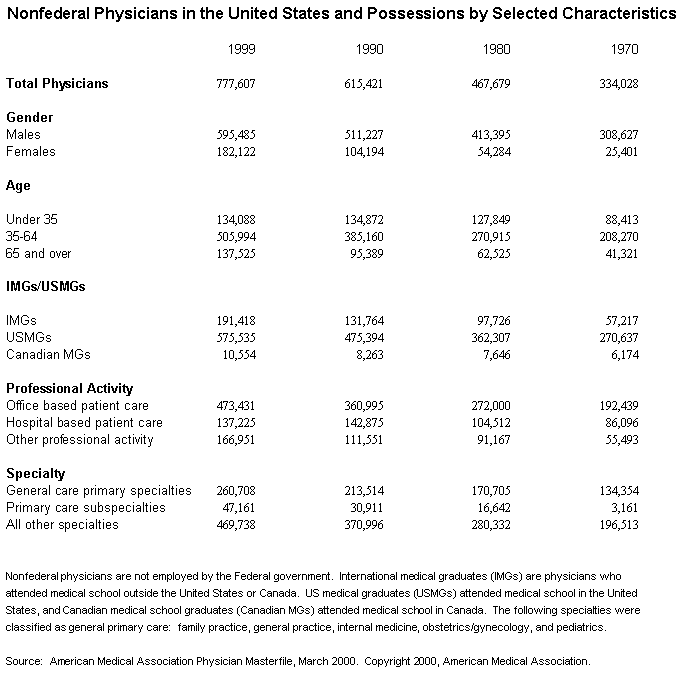
For the present exercise, let's just focus on the Gender section of the table:

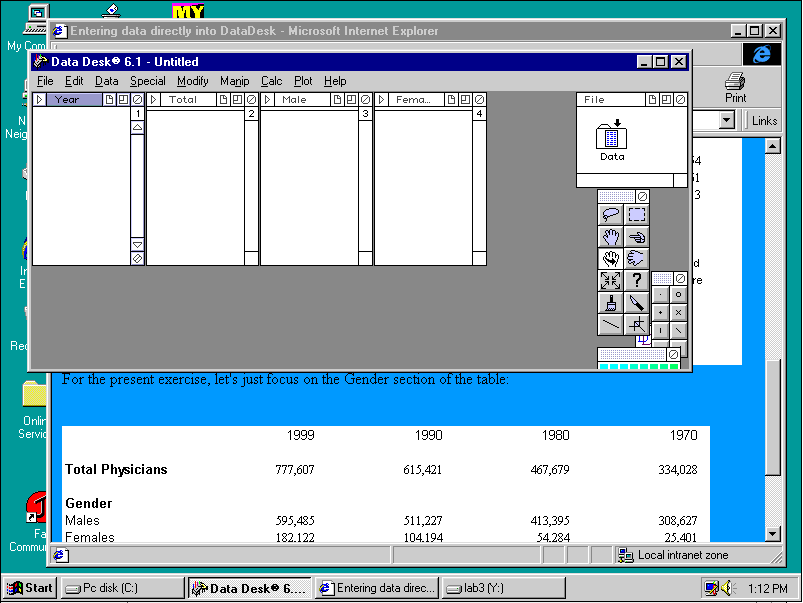
Open DataDesk and use Data -> New -> Blank Variable to create four variables naming them Year, Total, Male and Female. Then resize the DataDesk window by dragging the lower right corner so you can see the data entry areas in DataDesk at the same time as you can see values from the table. Your screen might look something like this:
You can now enter values into the entry areas in DataDesk by entering a value and Tabbing to each successive column. Notice you are reading values going down the original table and entering them going across the columns in DataDesk:
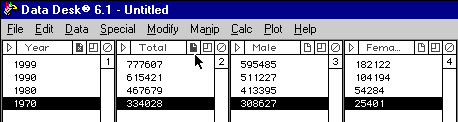
The data are now in DataDesk for you to examine. Open the data folder and rename the data icon within to Physicians Data. Open the newly named Physicians Data icon and you'll see a familiar-looking set of icons just like in the prepared data sets from your earlier DataDesk Labs. We'll come back to these data later but for now, we just want a reasonable name for the data set we just created.
Whence Data | <Previous | Next>