
How to Scan for Confidential Data: Mac
There are two tools available for sensitive data cleanup for Intel-based Apple computers: Identity Finder 5 and Find SSNs. Download either tool here.
Because of stability issues during testing, the Math department recommends using Find SSNs rather than Identity Finder. If you would prefer to use Identity Finder please follow CIT's instructions for scanning and cleanup. The department has packaged it to include the Cornell license, please download it from our website.
- After downloading and unzipping the correct version of Find SSNs, install it by running ALL_INSTALL.mpkg.

You will need to type the username and password for an admimistrator account during installation. If you only have a standard account and need assistance installing, please contact systems@math.cornell.edu. Install the program on your hard drive and proceed through the wizard until installation is complete. - In a Finder window, go to your Applications. There should be three new items:
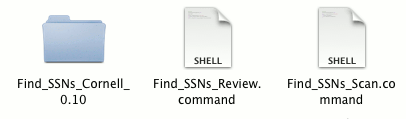
- Double click on Find_SSNs_Scan.command
- First, a Terminal window with some text will pop up. Do NOT Close this window until the scan is complete. The window itself warns you "Find_SSNs... Do not close this window."
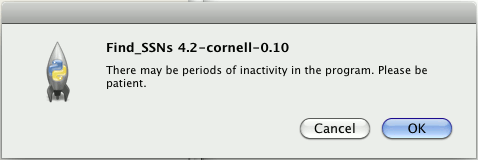
Second, a window will pop up warningyou that while the scan is running, it may appear that nothing is happening. Click OK
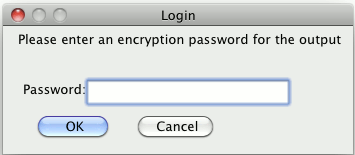
- Now you will be asked to type a password that will be used to protect the results of your scan. Please do not use your netid or math account password. After you press OK you will be asked to type the password again, do so and then hit OK again.
- Next, you need to pick your search location. For most users, scanning your Home Folder is adequate.
Entire Computer option will scan your whole hard drive, as well as any attached volumes, mounted images, etc). Custom allows you to select a specific folder/directory to be scanned (subdirectories are included).
Note: It is suggested the Time Machine backup volumes be handled seperately. More information about this coming soon.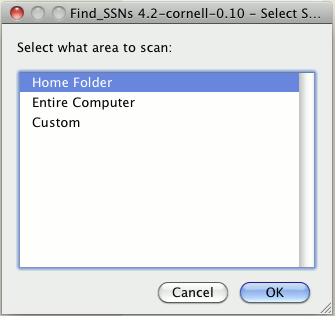
- Confirm the location by pressing Yes.
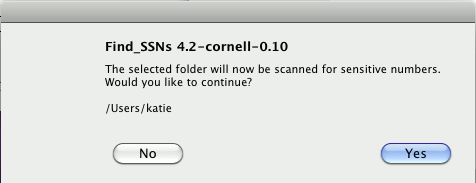
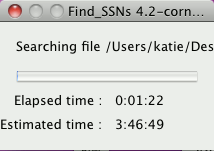
- It may appear for a minute or two that nothing is happening, but please be patient (and do not close the terminal window). A small window that gives an (often wildly inaccurate) time estimate should pop up.
-
Once the scan is complete, the window below will pop up.
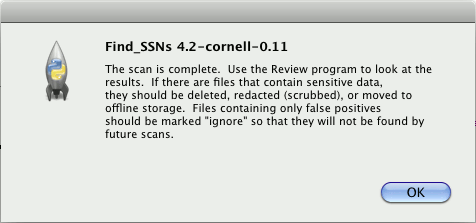
You may now close the Terminal windows if you wish.
Please proceed to the Clean-up instructions.